The week
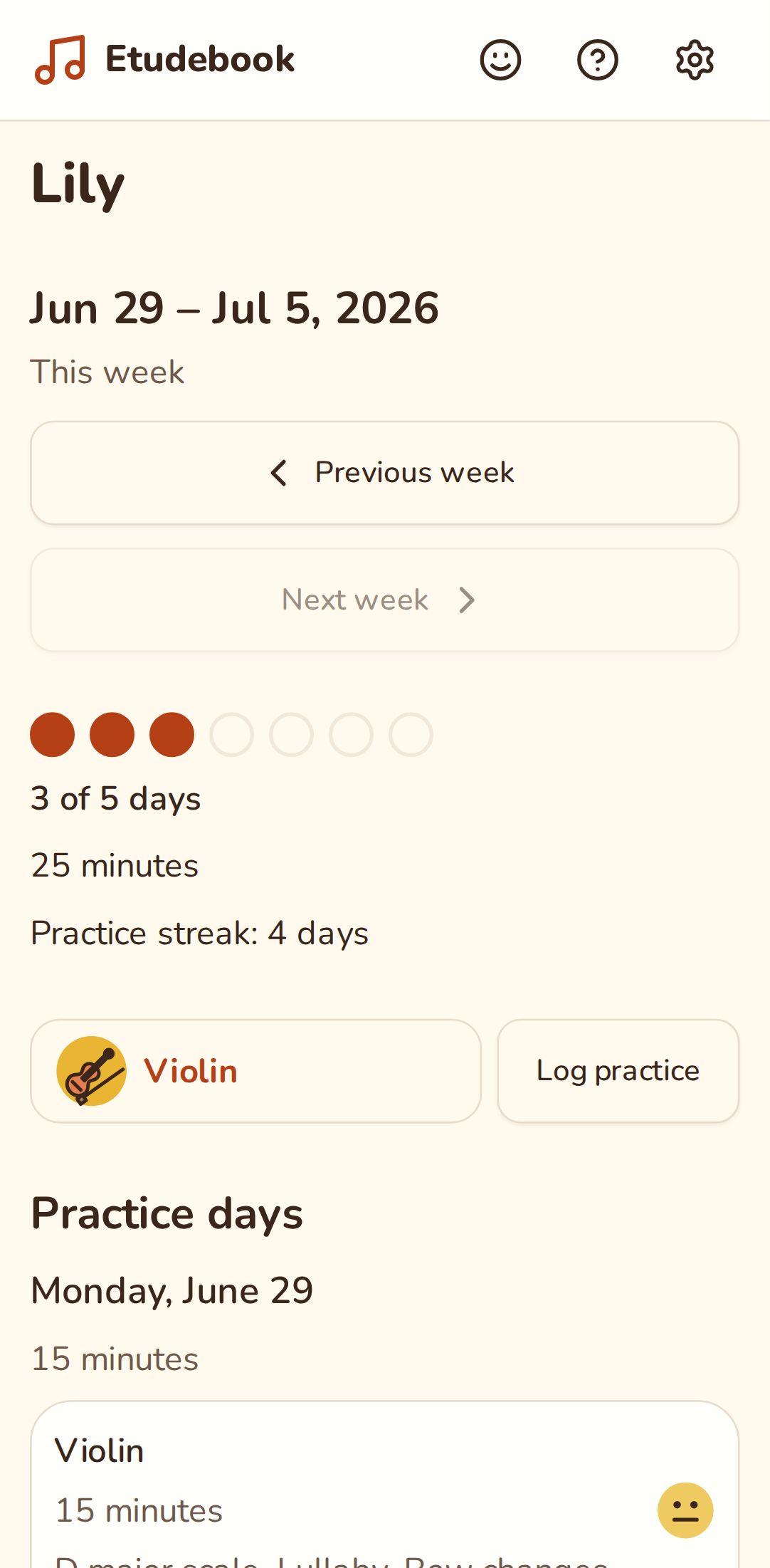
The week page shows how practice went for one child: which days they practised, for how long, and how the repetitions went against each task's target.
Open the week
On Children, tap the dots on your child's card. Previous week and Next week move between weeks, and This week brings you back. The page goes back to the week of your child's first practice.
Under the totals, each of your child's instruments has its own row: tap the instrument to open its notebook, or Log practice to write down a practice yourself. More in Logging practice yourself.
Days and the weekly goal
At the top are seven dots, one for each day of the week. A dot fills when your child practises that day, on any instrument. Next to them the page says how many days that makes against the family's weekly goal, for example "3 of 5 days", and how many minutes the week had.
A week that falls short of the goal isn't marked as a failure. Reaching it gets a "Goal reached!".
The goal and the first day of the week are the family's own, the same for every child. Change them in Settings under Weekly goal and Week starts on.
The practice streak
On this week's page, Practice streak under the dots counts how many days in a row your child has practised, on any instrument. It shows from 2 days up. Your child sees it after practising, next to the new sticker.
One missed day a week is free: it doesn't break the streak, and it doesn't count as a day practised. Today isn't missed until it's over. A second missed day in the same week ends the streak, and the line simply goes away until a new streak reaches 2 days. If you log a missed day afterwards, it counts.
Practice days
Under Practice days is each day your child practised, with its minutes. Each practice shows the instrument, how long it took, the face your child picked for how it went, and the tasks they practised. Tap a practice to see its tasks and correct them: under the heading it names your child and the instrument, and Back to the week brings you back here.
Repetitions
Under Repetitions is each task practised that week, with how many times it was played on each day. If the task has a target, such as "Goal: 5 times a day", a day that reaches it says Target reached. A task that was deleted from the notebook shows as Removed task.
Stickers
The page also shows how many stickers your child has, the same number they see in kid mode: one for every day they've ever practised, plus any extra stickers for longer practice.
With a reward goal set, the line under it says how far it has come, such as "Ice cream: 12 of 20 stickers". Once the goal is reached, Reward earned takes you to it on your child's page.
Confirming practice
If you'd like to confirm what your child logs in kid mode, go to Settings and, under Confirm practice logged in kid mode, choose Ask me to confirm it. Then:
- Practice from kid mode waits under Waiting for you to confirm on the week page, and your child's card on Children says how many are waiting.
- Tap Confirm on a practice, or Confirm all. The week then says Confirmed, or All confirmed.
- If you confirmed one by mistake, open it and tap Undo.
Practice you log yourself never waits. Confirming changes nothing for your child: a practice counts for its day, its sticker and its minutes whether it's confirmed or not, and kid mode never shows it.
What your child sees
In kid mode, your child sees the same seven dots at the top of the checklist, with how many days that makes against the goal. Kid mode shows only this week: no dates, minutes or earlier weeks. More in Kid mode.