Kid mode
Kid mode is the app as your child sees it: big pictures, few words, and nothing that changes your notebook pages or settings. A PIN keeps the grown-up pages closed.
Start kid mode
On Children, tap Practise at the bottom of your child's card. Or tap the smiling face at the top of the page and, under Who is practising?, tap your child's name.
The first time on a device, choose a four-digit PIN and enter it again. Pick digits you use nowhere else.
If your child has more than one instrument, they choose one next. The device stays in kid mode until someone enters the PIN, even if the app is closed and opened again.
What your child sees
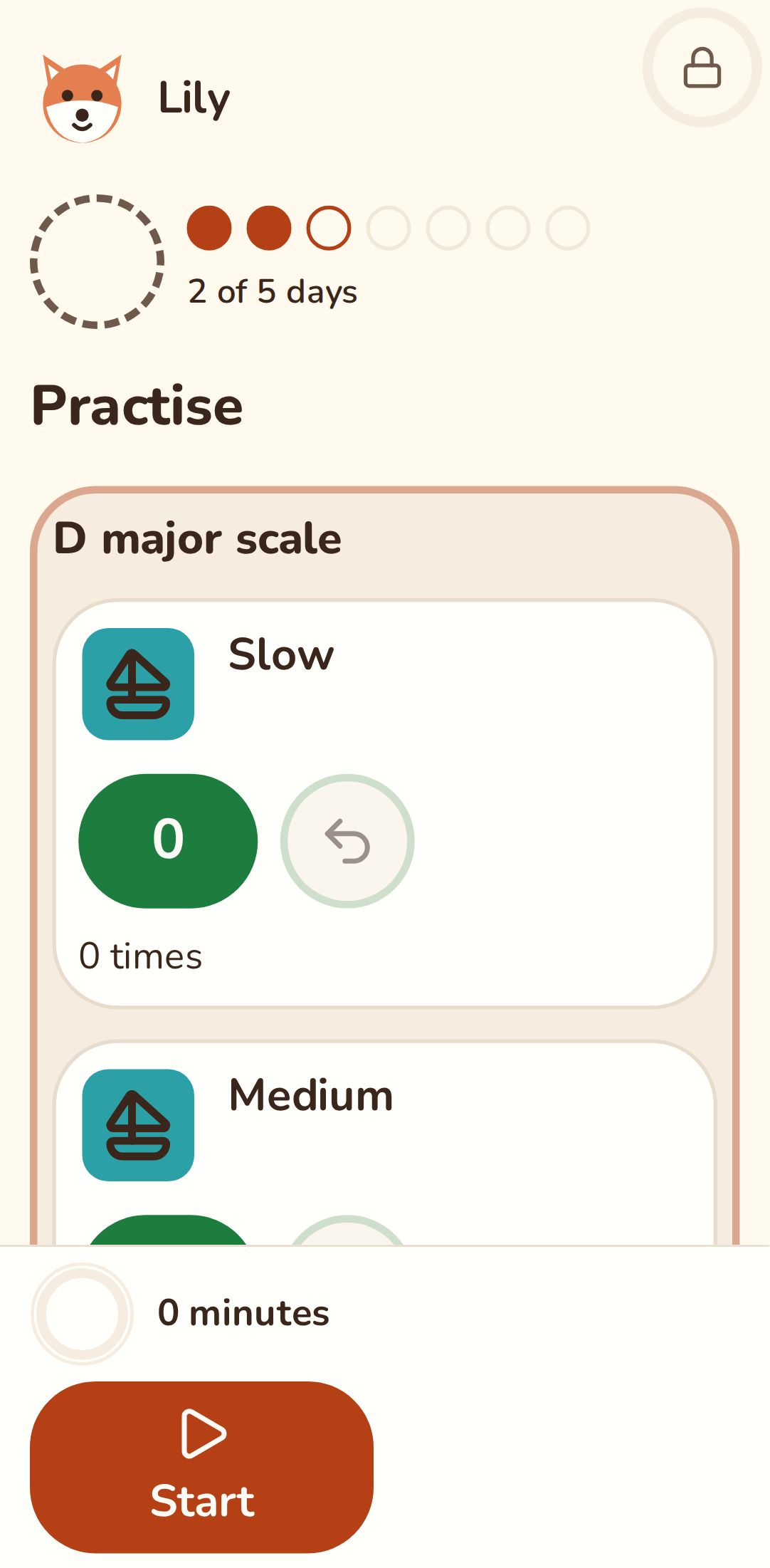
At the top are your child's picture and name, today's sticker once it's earned, and this week's practice days. Below them:
- The checklist: the tasks on the newest notebook page, each with its picture and title. At the reading level Full text, a task's notes open with Notes.
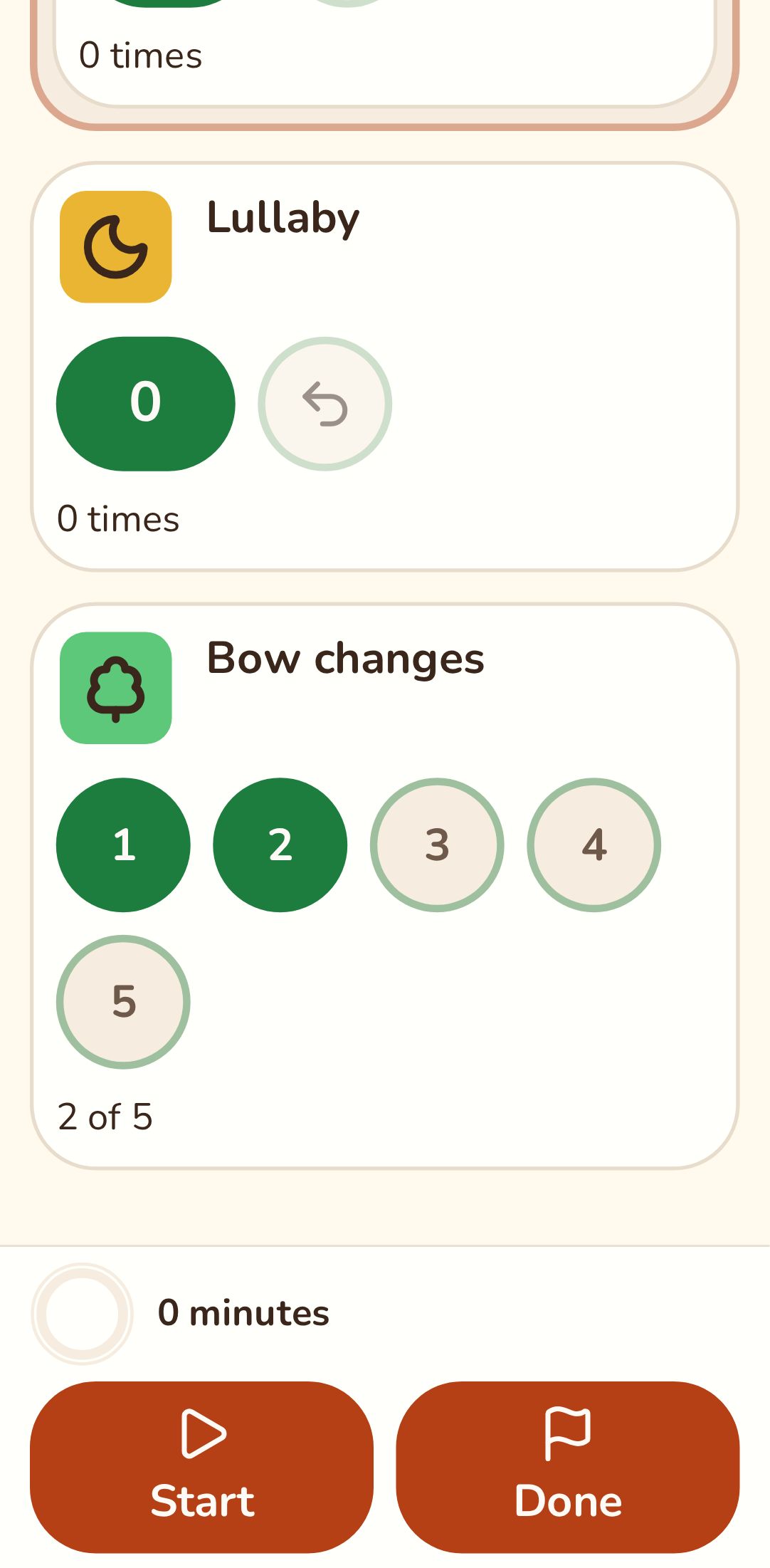
- The bubbles: one for each time through a task. A tap fills the next bubble, and Take one back undoes it. When the day's target is reached, the task gets a tick and says Enough for today. A task with no target counts up, and one tap gives it its tick.
- The bar at the bottom stays in place while the list scrolls. It has the timer, which your child starts with Start and pauses with Pause, and Done.
- When they're done, they tap Done, pick a face for how it went (hard, okay or great) and tap Finish. Back returns to the list, with the timer paused.
Done comes after the first bubble, or after a minute on the timer, so a sticker can't be earned with nothing played.
If the page has no tasks, your child can still practise freely with the timer.
The practice length
If the instrument has a Practice length, the timer's ring fills up towards it. When the time is reached, the ring gets a tick and the bar says Time's up!. The timer keeps running and nothing beeps, so your child can finish what they're playing. A new instrument starts at 15 minutes. To change the length, open your child's page and tap Edit next to the instrument.
The sticker
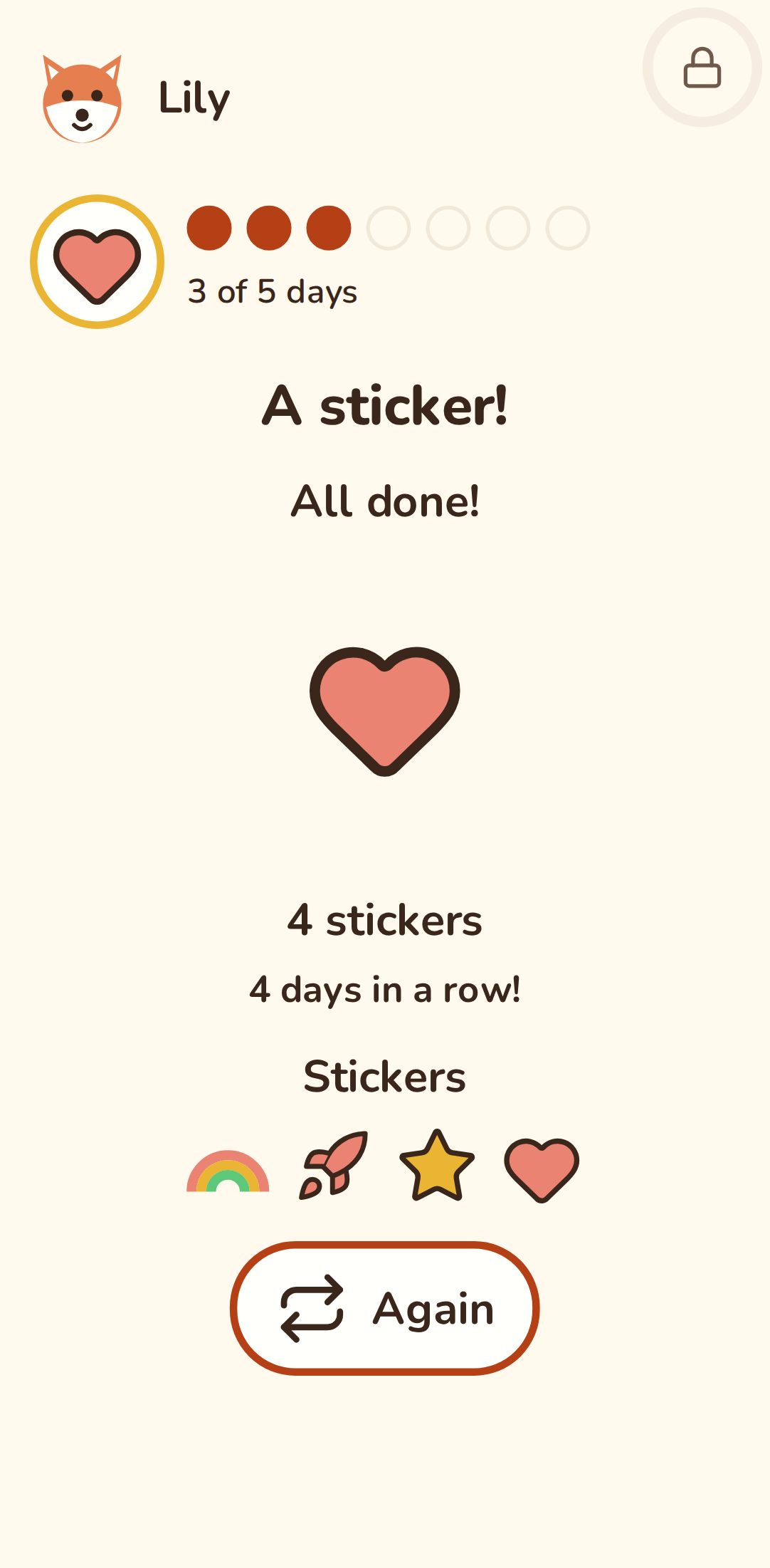
Each day your child practises, they get that day's sticker: one a day, however many times they practise. Practising again later the same day is welcome, and the sticker is already theirs.
After Finish, the sticker fills the screen, with how many stickers your child has, their latest ones and how many days in a row they've practised. The same collection shows when they choose an instrument.
Extra stickers for longer practice
If you'd like longer practice to earn more, go to Settings and, under Extra stickers for longer practice, choose Up to 4 a day.
Your child then gets a sticker for each full practice length in the day, up to 4. With a length of 30 minutes, an hour earns 2 stickers and two hours earn 4. The whole day counts together, so three practices of 20 minutes also earn 2. Any practice still earns the day's first sticker, and an instrument with no practice length earns one a day.
The time comes from the timer, or from the minutes you type when you log a practice yourself. The setting applies from then on: earlier days keep their stickers, and turning it off takes none away.
Reward goals
A reward goal is something you promise your child for a number of stickers: a trip to the ice-cream shop for 20 stickers, say. Tap your child's name on Children to open their page, tap Set a reward goal, fill in What's the reward? and How many stickers?, and tap Save. Stickers count from the day you set the goal.
In kid mode, a gift fills up as the stickers come in. Your child sees it after each practice, next to the new sticker, and when they choose an instrument. When a sticker reaches the goal, your child is asked to tell a grown-up, and their card on Children shows Reward earned: tap it to go straight to the goal on your child's page. Once you've given the reward, tap Mark as given there. The goal then leaves every screen, and you can set the next one.
The week page shows how far the goal has come, such as "Ice cream: 12 of 20 stickers".
Reading level and colours
Each child has a reading level, which sets how much text kid mode shows:
- Simple words: short words next to the pictures. Choose it for a child who doesn't read yet too: the pictures are all there, and the words give you something to point at when you help.
- Full text: whole sentences.
A child who can't read yet goes by the pictures, so give each task its own. The app warns you when two tasks on a page share one.
Each child can also have their own colours in kid mode: Autumn, Winter, Spring or Summer, or Same as mine.
To change either, tap your child's name on Children to open their page, tap Edit profile, choose a Reading level or under Kid mode's look, and tap Save.
Leave kid mode
- Hold the button in the top corner of the screen for three seconds.
- Enter the PIN.
After too many wrong tries, the app asks you to wait a moment before trying again.
Swap to another child
With two or more children, siblings can take turns on one tablet without the PIN:
- Hold the button in the top corner for three seconds.
- Tap Swap child.
- Under Who's next?, tap the next child.
Their checklist opens, still in kid mode. A practice the first child left halfway waits for them. The PIN is only for leaving kid mode.
Change or forget the PIN
- Change the PIN: tap the smiling face at the top of the page, then Change PIN below the children.
- Forgot the PIN: on the PIN screen, tap I forgot the PIN, then press Hold for three seconds to sign out until its ring is full. Signing out removes the PIN and kid mode from this device. Sign in again and choose a new PIN. Practice that's already saved stays in your diary.
Confirming practice
Practice from kid mode shows on the week page straight away. If you'd also like to confirm each practice, so you know which ones you've seen, go to Settings and, under Confirm practice logged in kid mode, choose Ask me to confirm it. New practices then wait on the week page until you confirm them.
Setting up for the first time? Start with Getting started.