Getting started
Setting up takes a few minutes. Have your email at hand and, if you can, what the teacher assigned at the last lesson.
Create an account
- Tap Start a diary on this site, or New here? Create an account on the app's sign-in page.
- Under Who is practising?, choose My child.
- Tick the box to confirm you're 18 or over and a parent or guardian, or have their permission, and tap Continue.
- Write your email address and tap Send me a link.
- Open the email and tap Create my account. The link works once, for 15 minutes.
There's no password. You stay signed in on the device, and when you need to sign in again, you get a new link by email.
Finding your way
The app opens on Children, with a card for each child. The bar at the top of every page has:
- Etudebook on the left: tap it to come back to Children from anywhere.
- The smiling face: kid mode, for handing the phone or tablet to a child.
- The question mark: this guide, open at the part about the page you're on. The guide at its top lists all the parts, and Close takes you back to where you were.
- The gear: Settings.
Until your child's first practice, Children also shows Getting started: four steps that tick off as you go. Tap the next step to do it.
Add a child
On Children, tap Add a child and fill in:
- Name or nickname: a first name or a nickname is enough.
- Picture: an animal your child can recognise as theirs.
Tap Save. That's all a child needs. More choices opens the rest, which you can leave as they are:
- Language: the language of kid mode, if it isn't the household's.
- Reading level: how the practice screens show text: Simple words or Full text. More in Kid mode.
- Kid mode's look: the colours your child practises in. See Colours below.
A family can have up to three children. To change any of this later, tap your child's name on Children to open their page, then tap Edit profile.
Add an instrument
Practice starts once your child has an instrument. On Children, tap Add an instrument on your child's card, and fill in:
- Instrument: its name in your own words, such as piano or violin.
- Teacher (optional).
- Lesson day: the weekday of the lessons, or No fixed day. On the lesson day the notebook offers to start that week's page.
- Practice length: how long a practice usually lasts, 15 minutes unless you change it, or No set length. In kid mode the timer fills up towards it.
- Picture: a picture of the instrument, for your child to recognise.
Tap Save. A child can have more than one instrument, each with its own notebook: open your child's page and tap Add an instrument under Instruments.
Write down the first lesson
On Children, tap the instrument on your child's card to open its notebook. Tap New lesson page, then add the tasks the teacher assigned, one task for each piece or exercise. More in The notebook page.
Let your child practise
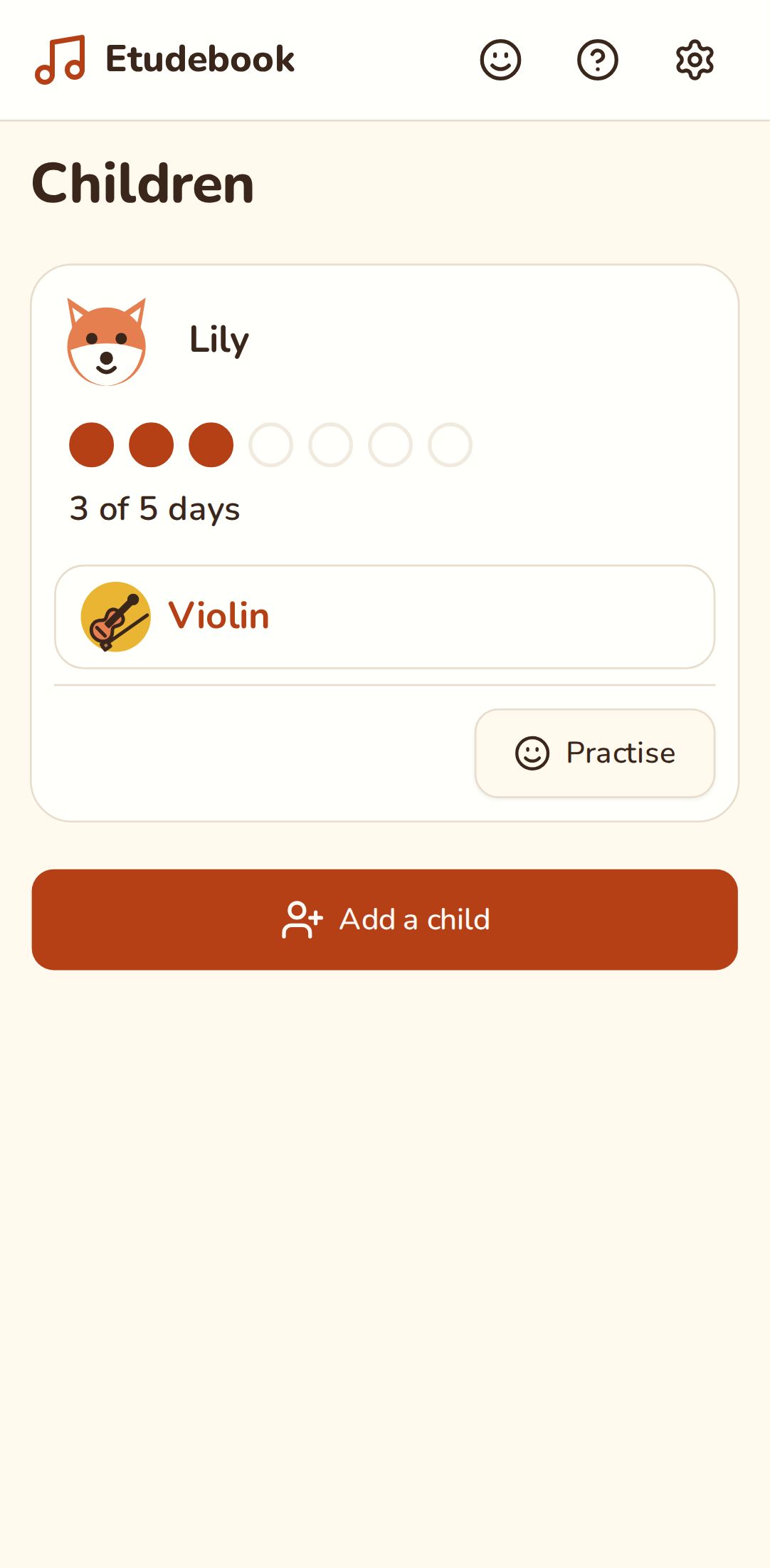
When the page has tasks, tap Practise at the bottom of your child's card. The first time on a device, you choose a four-digit PIN. Your child can then practise on their own, and you need the PIN to leave kid mode. More in Kid mode.
Colours
The app comes in four looks, named after the seasons: Autumn, Winter, Spring and Summer.
- Your own pages: in Settings, under Look, tap the one you like. It's saved at once, on every device you use.
- Your child's kid mode: on your child's page, tap Edit profile, choose under Kid mode's look and tap Save. Each child can have their own. Same as mine uses your look.
Where the settings are
Settings holds what's the same for the whole family: under Household, the language, the time zone and the first day of the week; under Practice, the weekly goal, confirming practice and extra stickers. What belongs to one child is on that child's page: each instrument's practice length, the reward goal, and the reading level and look under Edit profile. Settings says so at the foot of each card.
On another phone or tablet
Sign in with the same email address on every device you use, for example your phone and the tablet your child practises on. The diary is the same on each of them.
Another adult in the family signs in with their own address once you've invited them. More in Family members.
Keeping your own diary
If you're 13 or older and practise yourself, choose Me under Who is practising? and give your age. After signing in, choose a name and a picture for your diary under About you. Under 13s are asked to have a parent set it up.
Your Getting started has three steps: add an instrument, write the first lesson page, and log your first practice with Log practice in the instrument's notebook. More in Logging practice yourself. Your own settings are under My practice in Settings, and each instrument's practice length is on its form, on your page.