The notebook page
Each instrument has its own notebook, with a page of its own for each lesson. On the page you write down what the teacher assigned, and your child practises from it until the next lesson.
Add a new page
- On Children, tap the instrument on your child's card.
- Tap New lesson page.
- Under Lesson date, choose the day of the lesson, even if you write it up a few days later.
- Tap Create page.
Your child practises from the newest page dated today or earlier. A page dated later waits for its day, so you can write next week's page ahead of time, and the notebook says Your child sees it from this day. under it.
If the instrument has a lesson day, the notebook asks for the page from that day on: Lesson today. Start this week's page?, and on the days after, for example, Lesson on May 12, 2026. Start its page? The question stays until there's a page dated the lesson day or later, and the new page is dated the lesson day for you. Your child's card on Children says Page to write meanwhile.
Add tasks
Tap Add a task and fill in:
- What to practise: in your own words, for example "Minuet in G, bars 1–8".
- What kind of task?: piece, scale, technique, theory, listening or other. The kind gives the task its picture.
- Picture: the form shows the task's picture. Tap Change picture to choose another, so that two tasks don't look the same, or The kind's picture to go back.
- Repetitions a day (optional): how many times through each day. Your child fills one bubble for each.
- Tempo (optional): the tempo the teacher asked for, in beats a minute.
- Notes (optional): a reminder for this task, such as "keep the wrist loose".
Tap Save. A page holds up to 30 tasks.
Your child sees each task's picture and title in kid mode. The tempo and the notes show only at the reading level Full text, the notes behind a Notes button. A child who can't read yet goes by the picture, so give each task its own. More in Kid mode.
To change a task, tap Edit on it.
The teacher's notes and the date
Under the tasks are the Teacher's notes. They're for you: what the teacher said in the lesson, what to listen for, the date of the next concert. They're on the page, not on the tasks, and your child doesn't see them in kid mode. Tap Save after writing.
Above the notes is the page's date, such as Lesson date: May 12, 2026. To move the page to another day, tap Change date, choose the day and tap Save.
One exercise, several ways
Teachers often ask for one thing in several ways: a scale slow, medium and quick, or a passage with the left hand, the right hand and both. Write it as a group:
- Add the first task, for example "D major scale" at tempo 60.
- Tap Arrange tasks, then Add a variation under the task. The form opens as a copy of the task: change what differs, in this case the tempo, and tap Save.
- Add a variation for each way the teacher asked for.
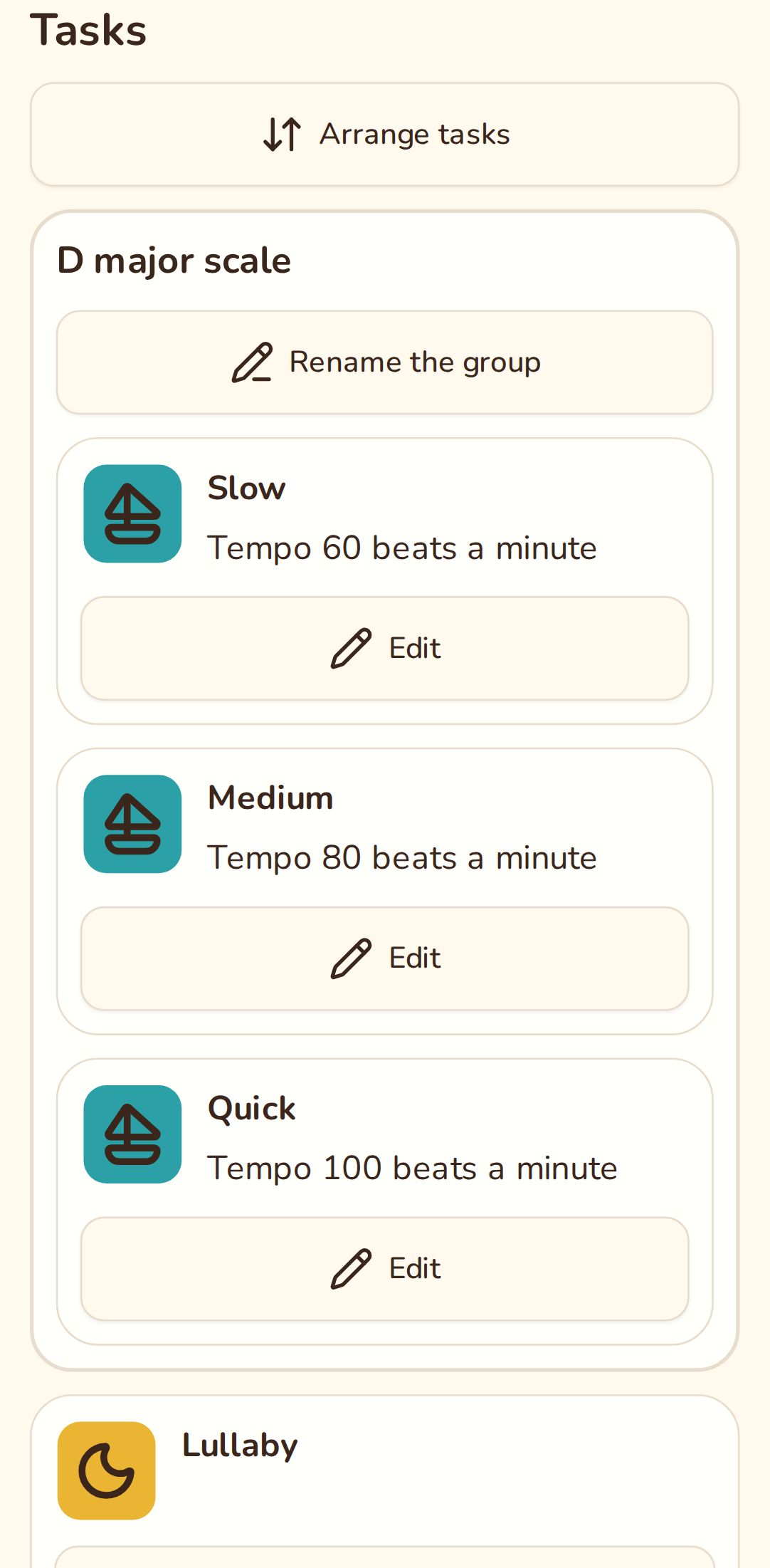
The tasks now sit together under one heading, named after the first task. Give each its own short name, such as "Slow", and change the heading with Rename the group. In kid mode the group is one framed block, with its own bubbles on each row.
Arrange tasks shows the buttons for moving tasks and groups up and down, Add a variation, Group with the task above, Take out of the group and Ungroup.
Copy last week's page
Most weeks the teacher carries on with some of the same pieces, so you don't need to write them again:
- Tap New lesson page and choose the Lesson date.
- The new page copies the newest page. To copy another one, choose it under Copy from: each page is listed by its date and first tasks.
- Untick the tasks the teacher dropped. A group comes over whole.
- Tap Create page, then add what's new.
The teacher's notes aren't copied. Start blank makes an empty page instead.
The notebook's order
The notebook opens on the Current page, the one your child practises from, with its tasks: tap its date to open it. Below it, Other pages lists the rest, each with its date and first tasks: tap one to read it or correct it. Practice, with Log practice and the practices so far, comes last.
Delete page, at the foot of a page, removes the page and its tasks.
New to the app? Start with Getting started.